Making Deliveries in V3
1. Create Orders
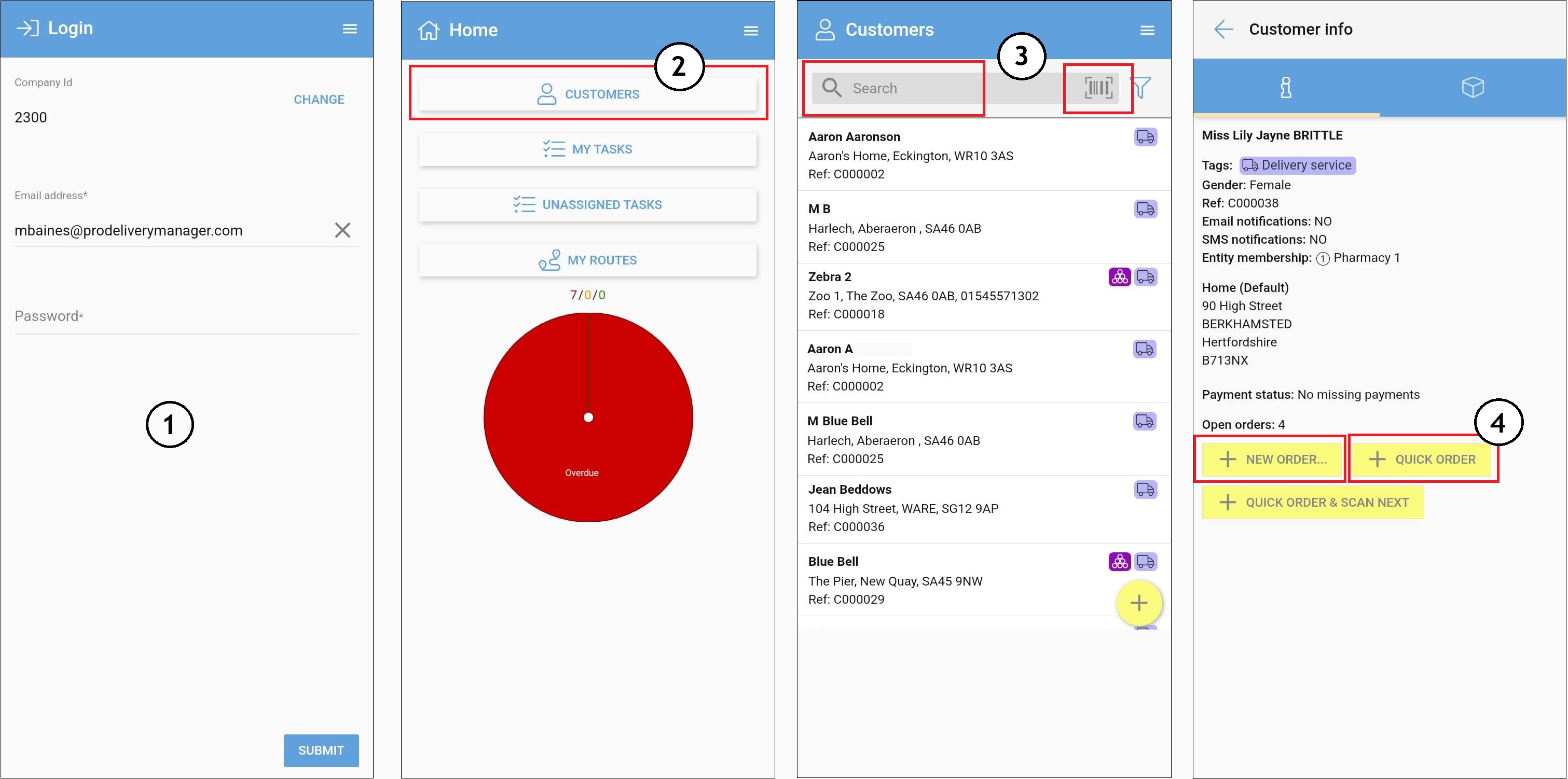
1. Open the PDM App and log in.
2. Tap Customers from the home screen.
3. Scan or search for a customer.
4. Choose one of the following options:
+ New Order – Start from scratch. Ideal when CD tags, fridge tags, or extra info is needed.
+ Quick Order – Use for orders with saved defaults or where no extra information is needed.
+ Quick Order & Scan Next – Used to create a quick order for that customer and moves straight to scan the next customer barcode.
2. Route TasksOnce your orders are created, go to My Tasks from the menu (tap the ☰ menu top-right).
In My Tasks:
1. Tap the icon next to each task to select, or tap All (bottom-left) to select all.
2. Tap Route.
3. Name your route (optional), or leave it blank to use today’s date and tap Select to confirm.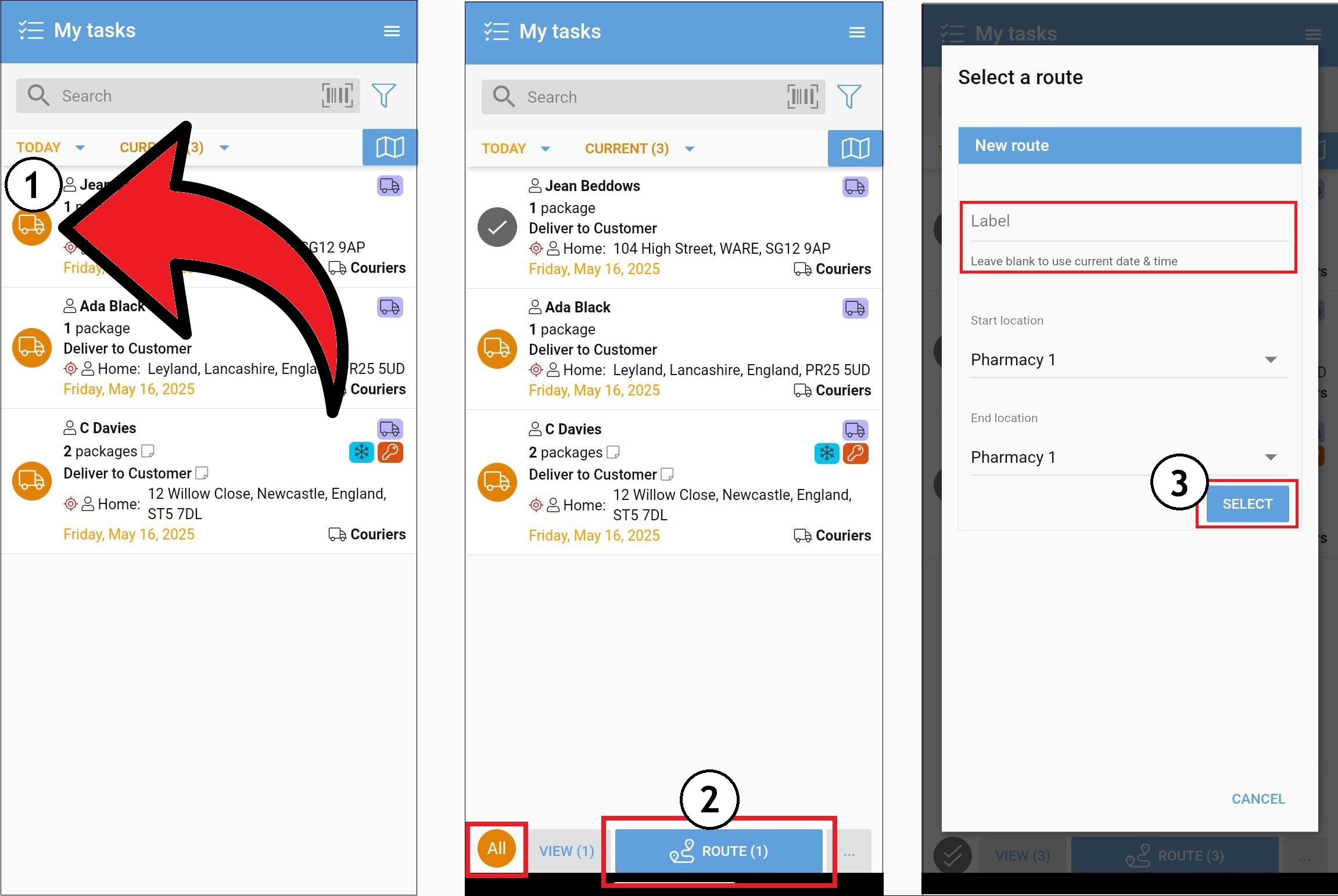
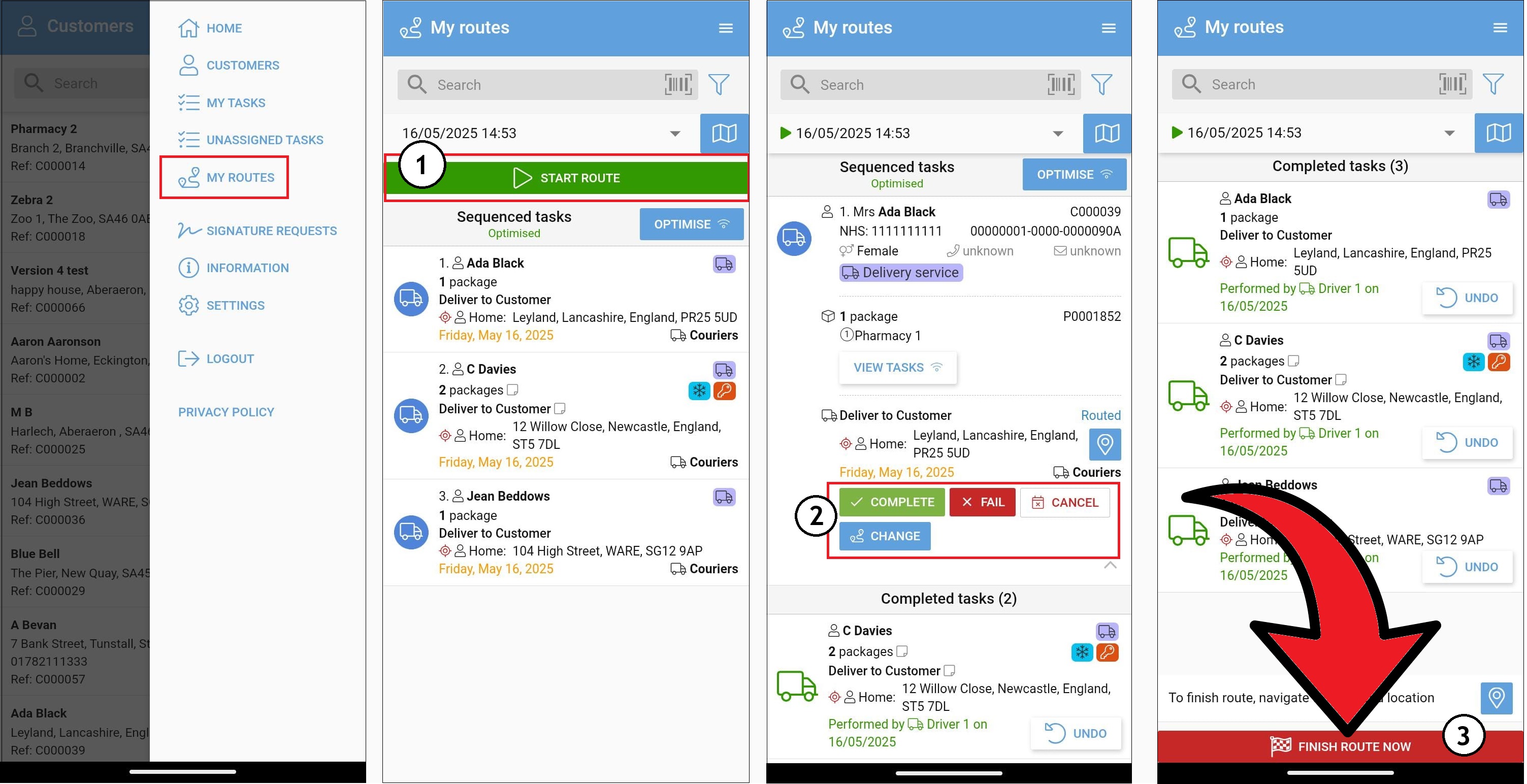
3. Complete the DeliveriesYour newly created route will now appear in My Routes (tap the ☰ menu top-right).
Tap Start Route to begin.
As you make deliveries, tap each task to Complete, Fail, or Cancel it.
Once all tasks are done, tap Finish Route.