 Watch the Video
Making Deliveries
1. Create Orders
1. Open PDM App and login
2. Tap the scan icon to open the device camera
3. Scan a package to add a quick order
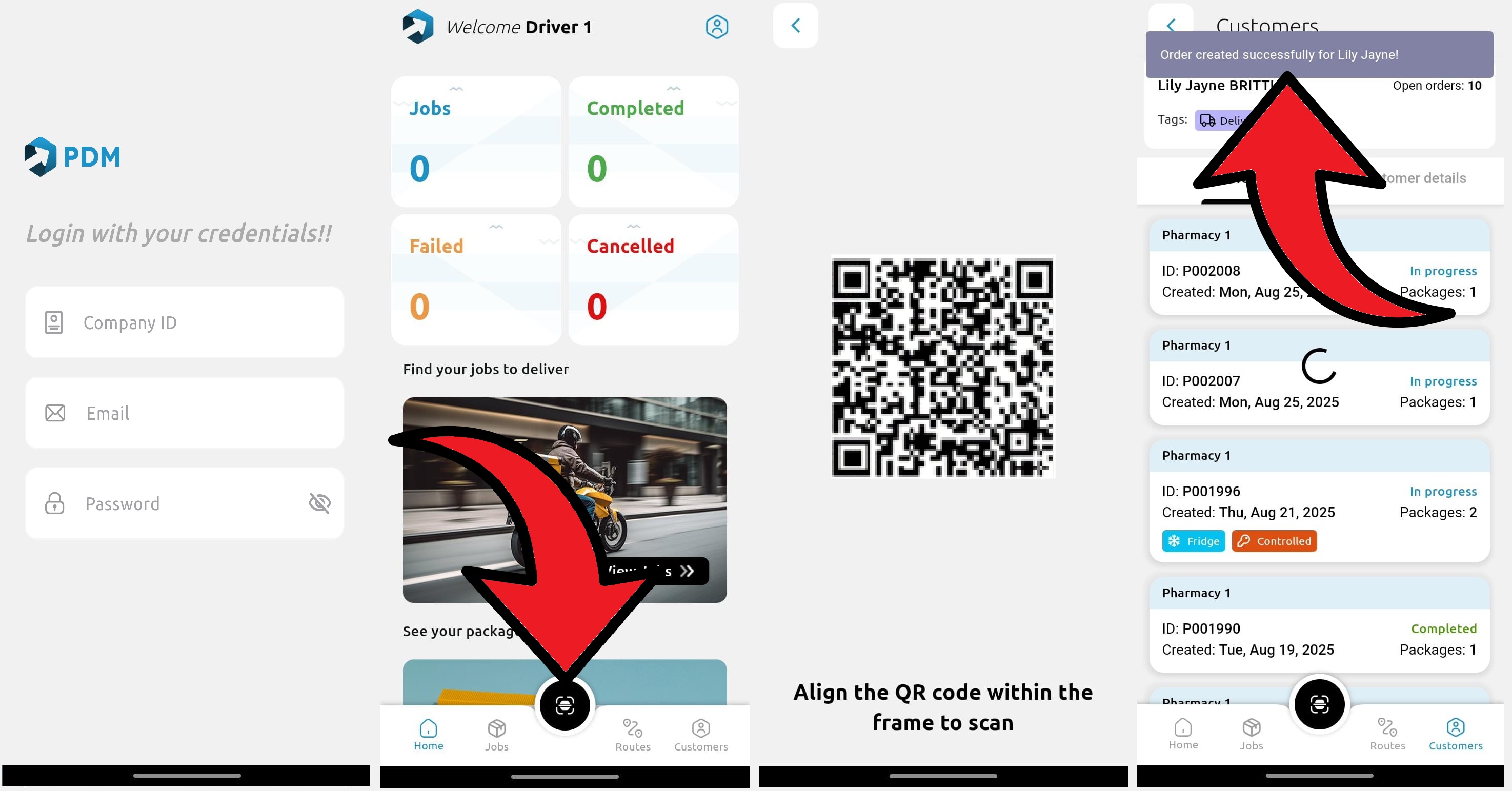
💡 Tip: If CD, Fridge tags or additional information are required for the delivery, instead of scanning from the Home page, go to Customers, use the barcode scan in the search bar and select +New Order. Follow the prompts on screen and tap Save when you're done.

2. Route Jobs
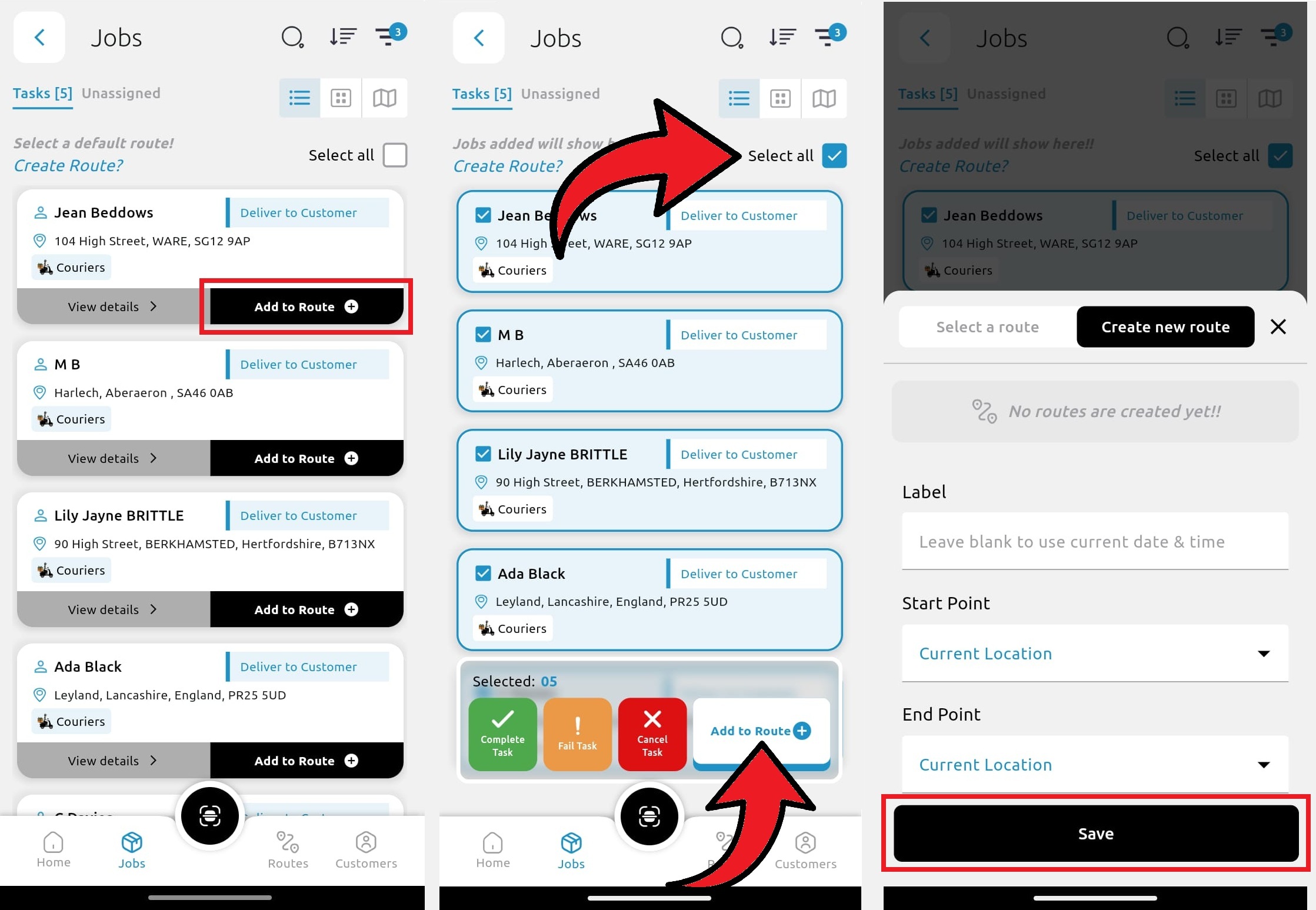
Once orders are created, tap Jobs.
1. To add a single delivery to a route (or to add a delivery to an existing route), use the Add to Route button next to the task.
2. To multi-select, either tap Select all, or long-press the first task and add subsequent tasks by tapping them.
3. Tap Add to Route
4. Tap Select a route to add task(s) to an existing route or tap Create a new route.
3. Complete the Deliveries
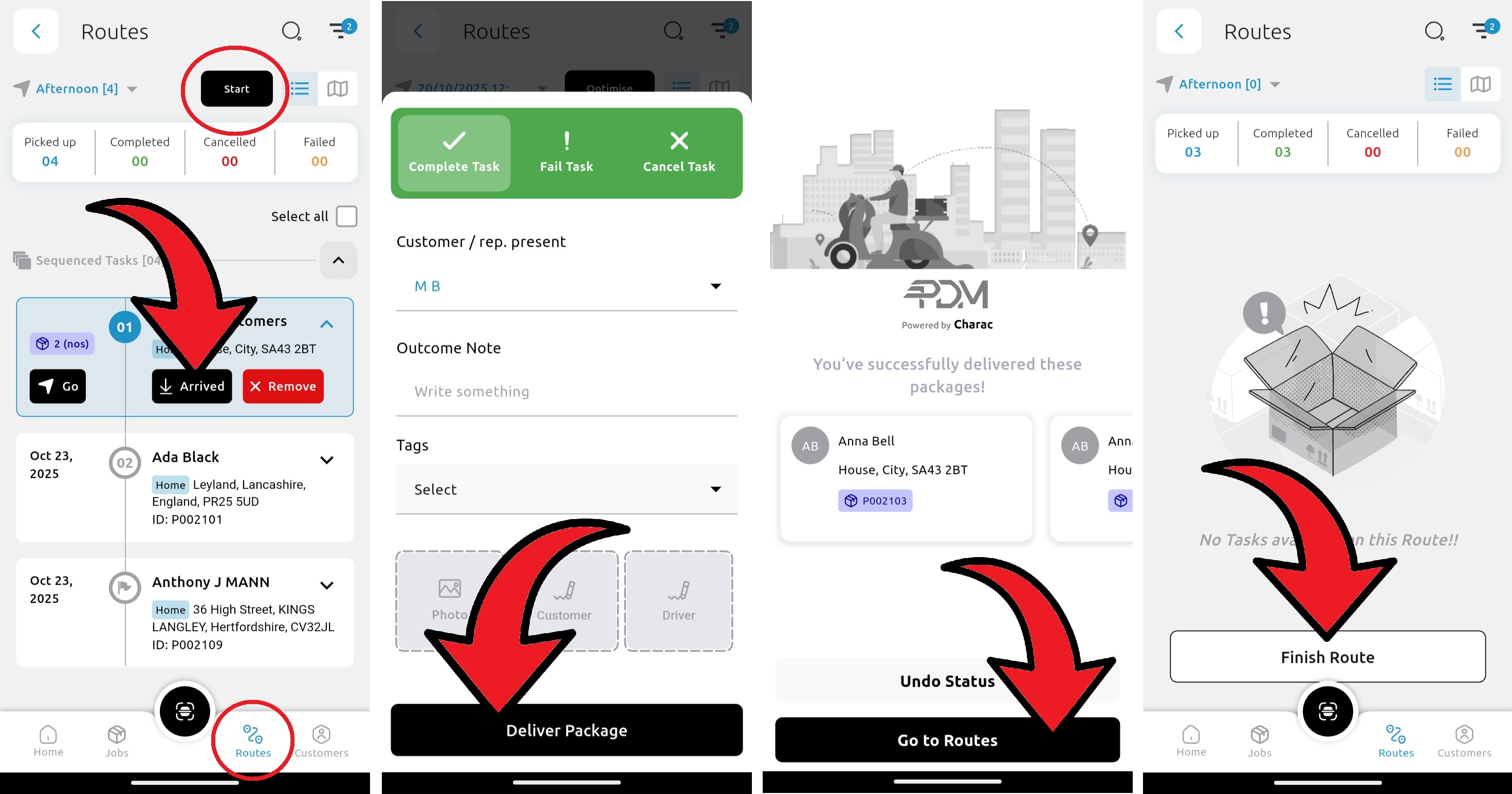
The jobs selected are now in Routes.
1. Tap Start
2. Once at the delivery location, tap Arrived.
3. Scan the package (optional; press Skip if you want to skip this step)
4. Select Complete, Fail or Cancel. You have options to add tags, an outcome note, take a photo, get a customer signature or record your own signature here.
5. Tap Deliver Package
6. Tap Go to Routes to view the next delivery in the list
7. Once all deliveries are attempted, tap Finish Route