The Home Screen
Once you’re logged in, you’ll see the Home Screen.
From here, you can quickly view how many current jobs there are as well as instant overview of your progress for the day.
The main dashboard shows four key job statuses:
-
Jobs – all jobs to be delivered
-
Completed – deliveries successfully finished
-
Failed – deliveries that couldn’t be completed
-
Cancelled – deliveries that have been cancelled
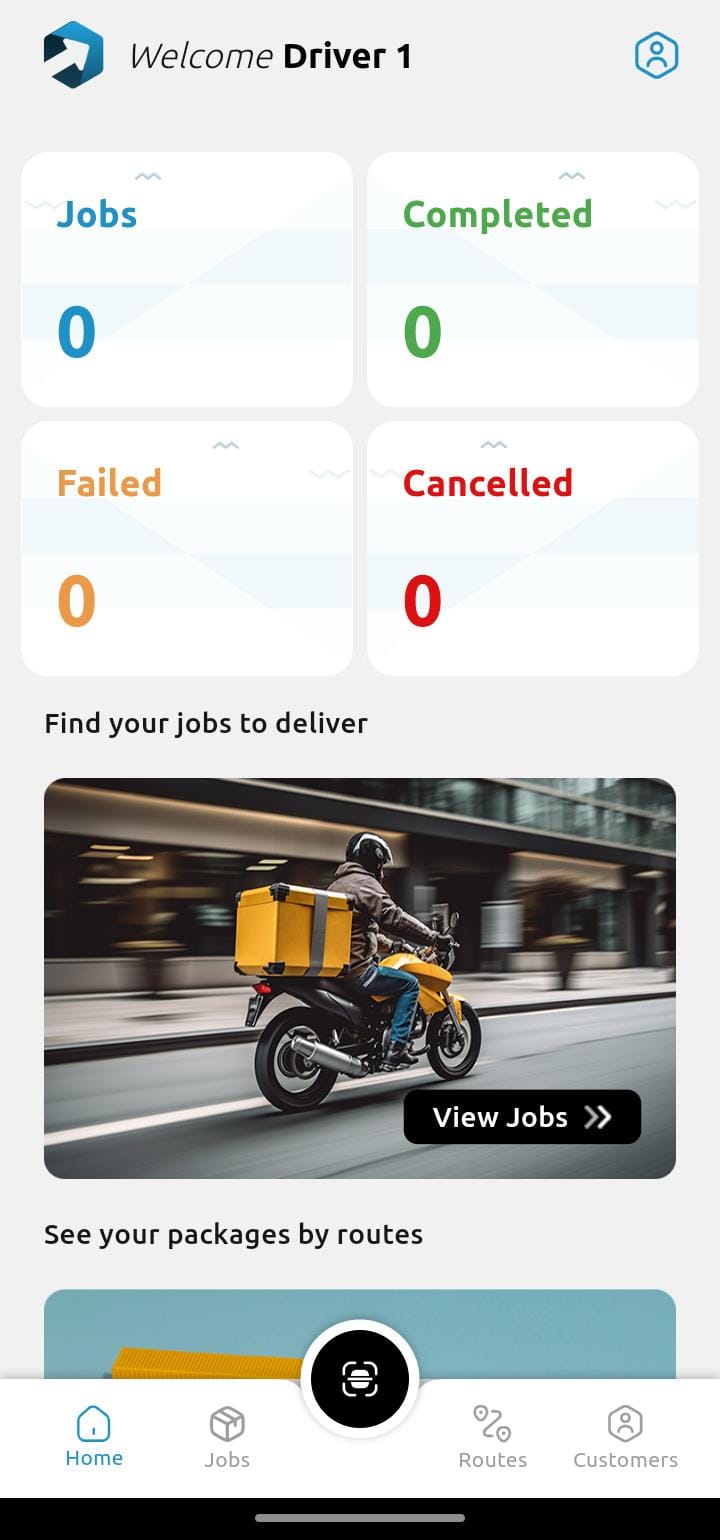
At the top right, you’ll find your Driver Profile. Tap this to view your delivery history, update your settings, or check app version information.
The barcode scan button is available on every screen, giving you quick access to scanning whenever you need it.
Using the barcode scan button from this screen will locate a patient record and add a quick order to the system using the defaults available.
Use the View Jobs tile to take you to the Jobs list.
The See Routes tile takes you to any open routes.
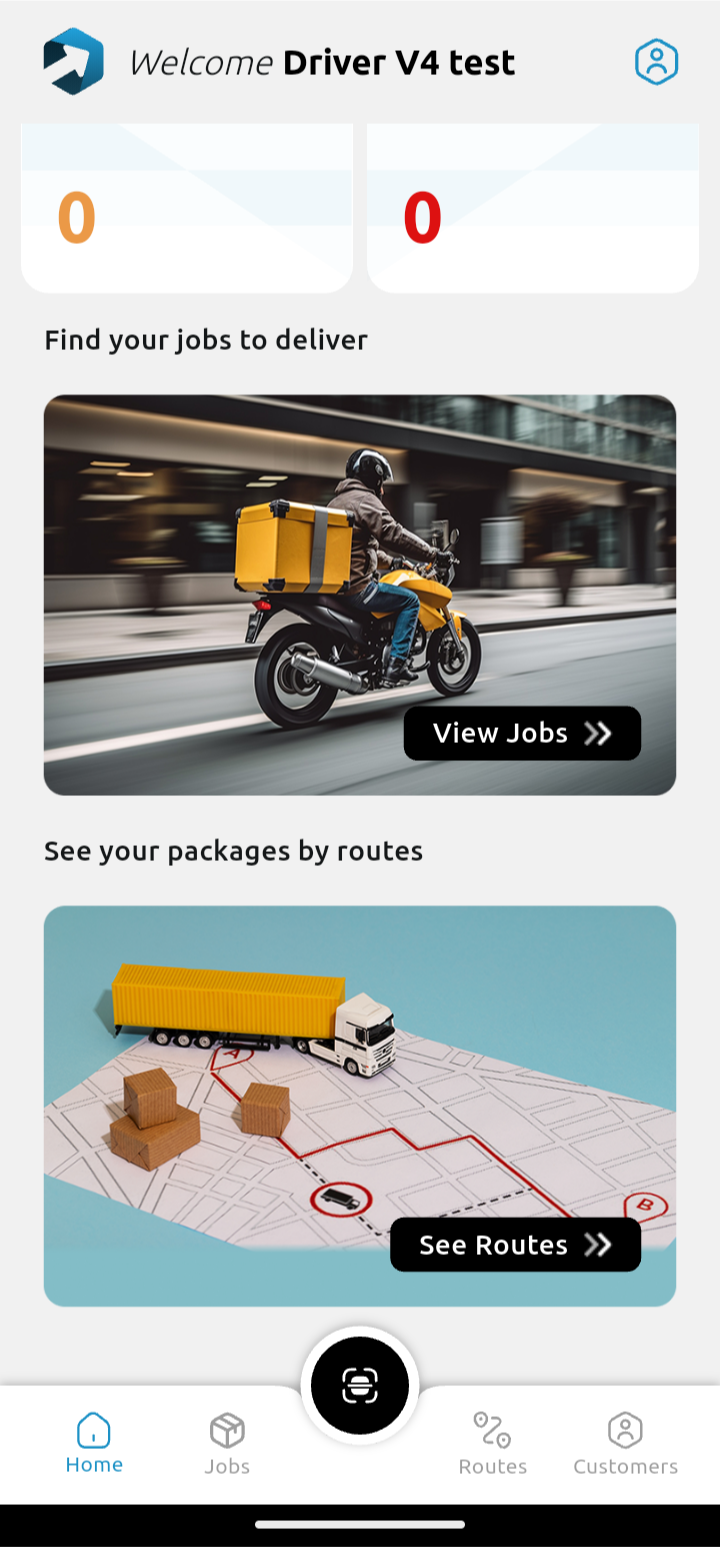
The barcode scan button is available on every screen, giving you quick access to scanning whenever you need it.
Use the navigation bar at the bottom of the screen to move between:
Home, Jobs, Routes, and Customers.