
 Watch the Video
Modifying Customers
To modify or edit an existing customer’s details, open the Customers module.
You’ll see a summary of all existing customers in the database.
Using the Quick search (or barcode scan if available to you), search for the customer, click View/Edit or simply double-click to open the customer record.
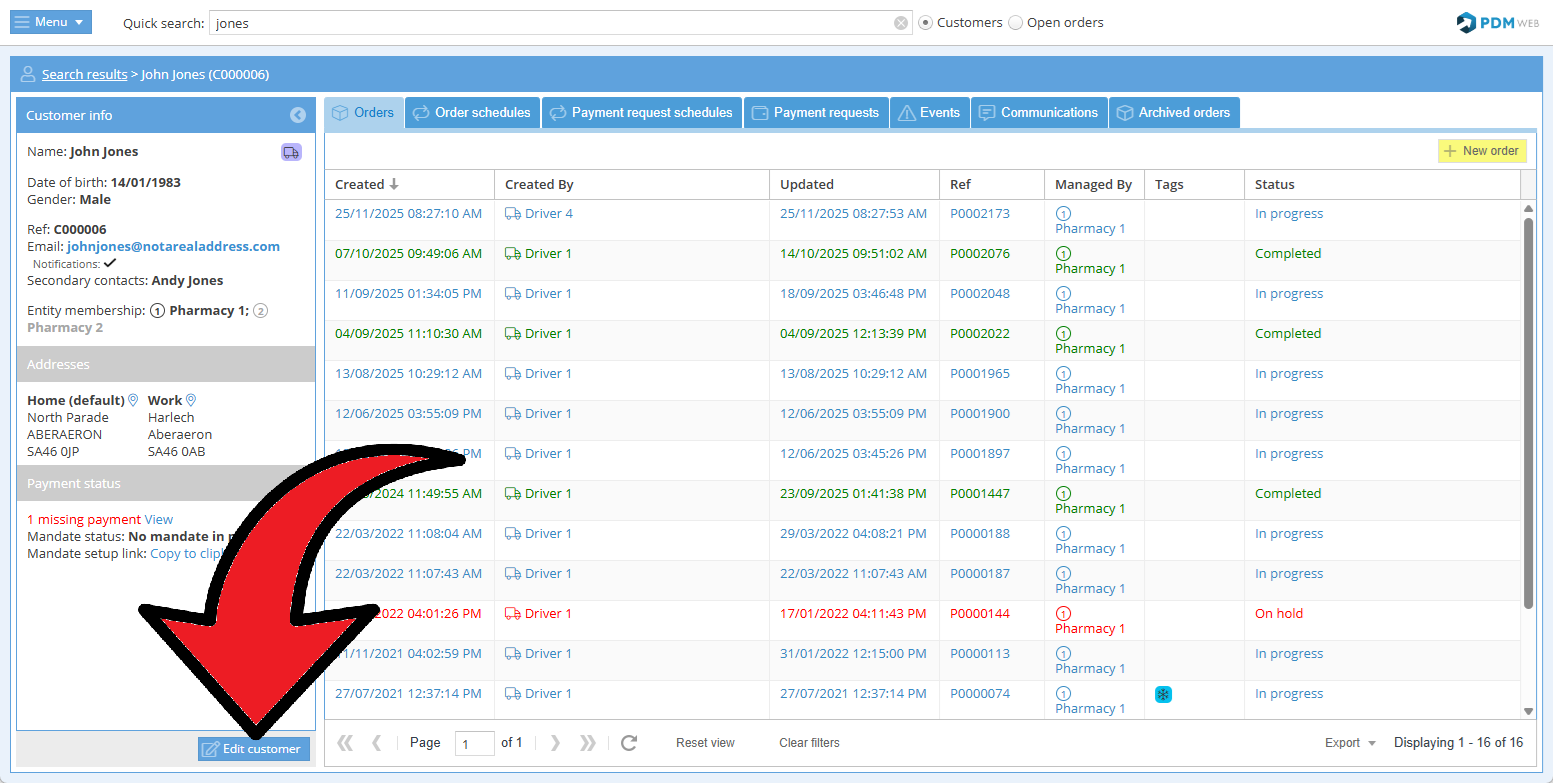
Click Edit customer.
Edit the customer details as needed.
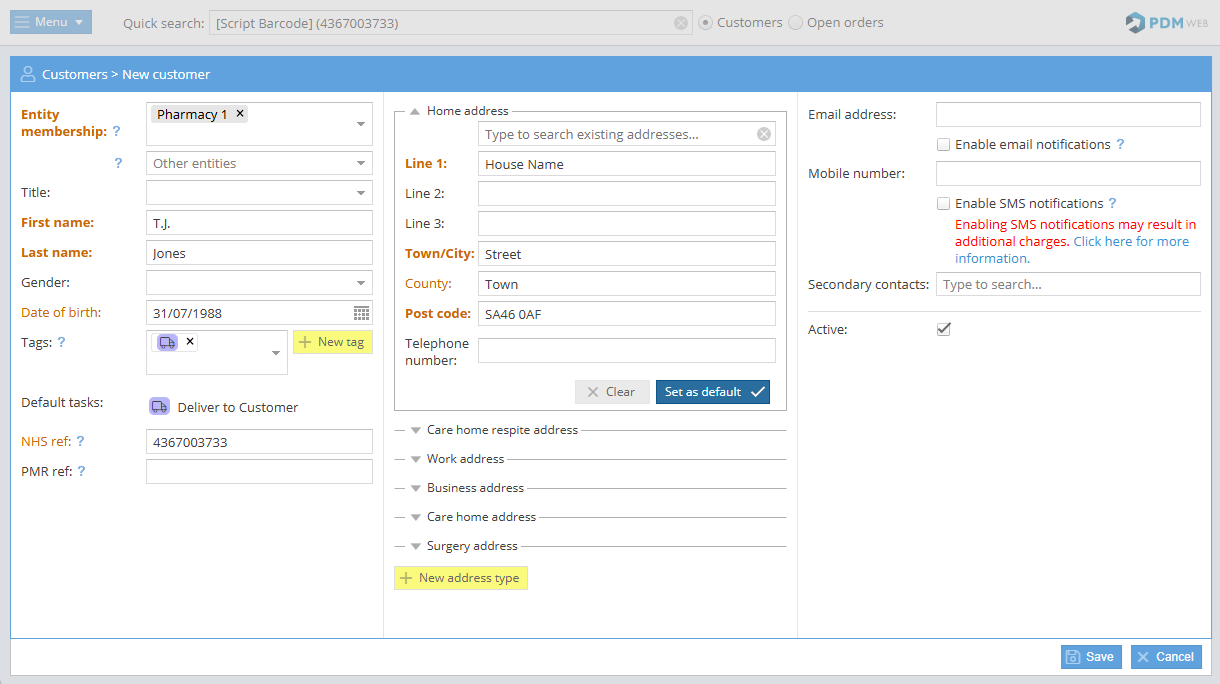
When you’re done, click Save changes and the customer information will be updated.
Modifying order defaults
To make changes to order defaults like notes, tags, etc., locate the customer record using the search.
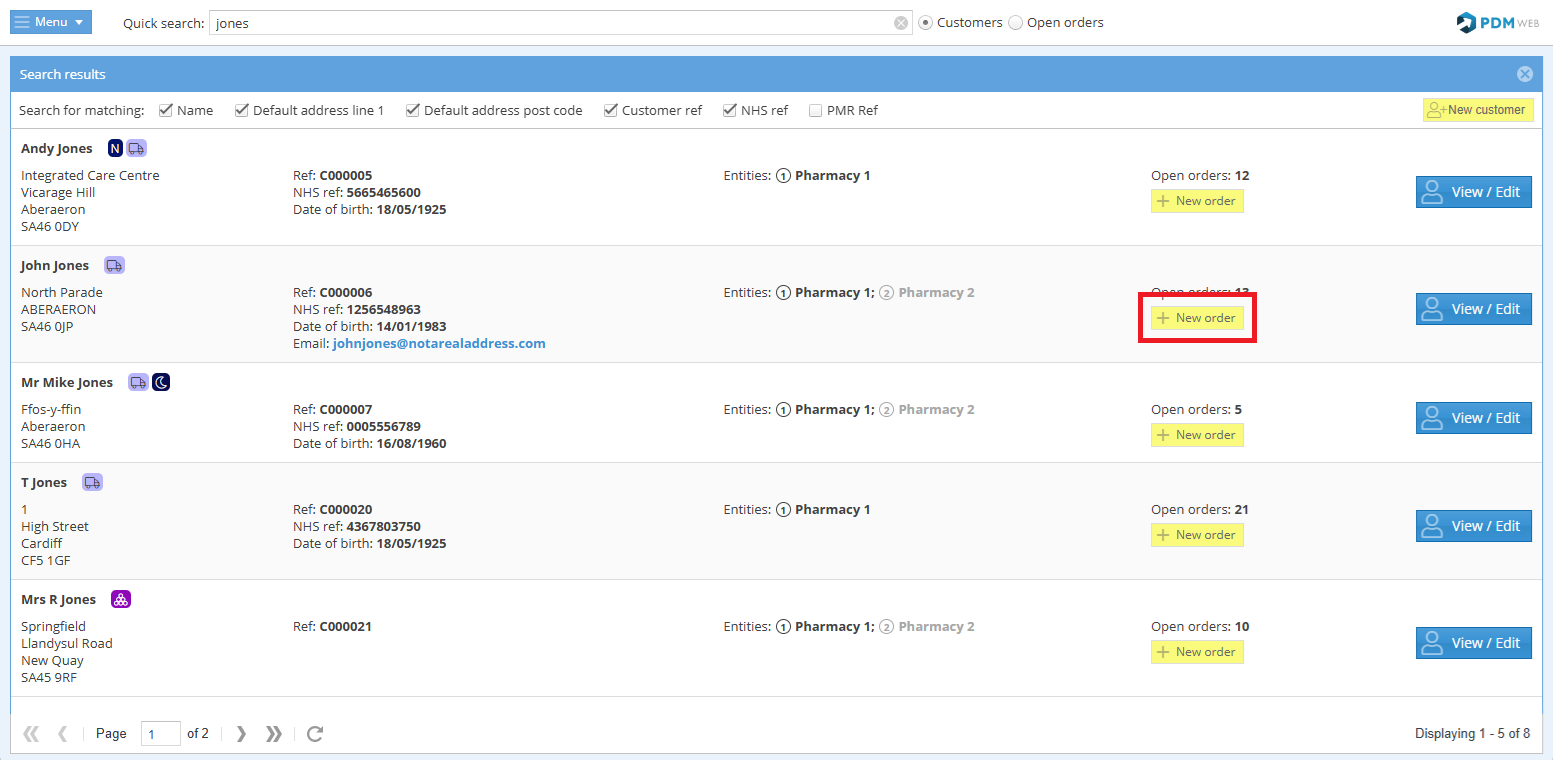
Instead of clicking View/Edit, click +New order.
Here, you can make changes to saved order notes, task notes, tags, etc. without needing to save the order.
To make a change to a default that is saved (indicated by the blue pin 📌), simply update the information and then click the pin to set it as a default for all subsequent orders created for this customer.
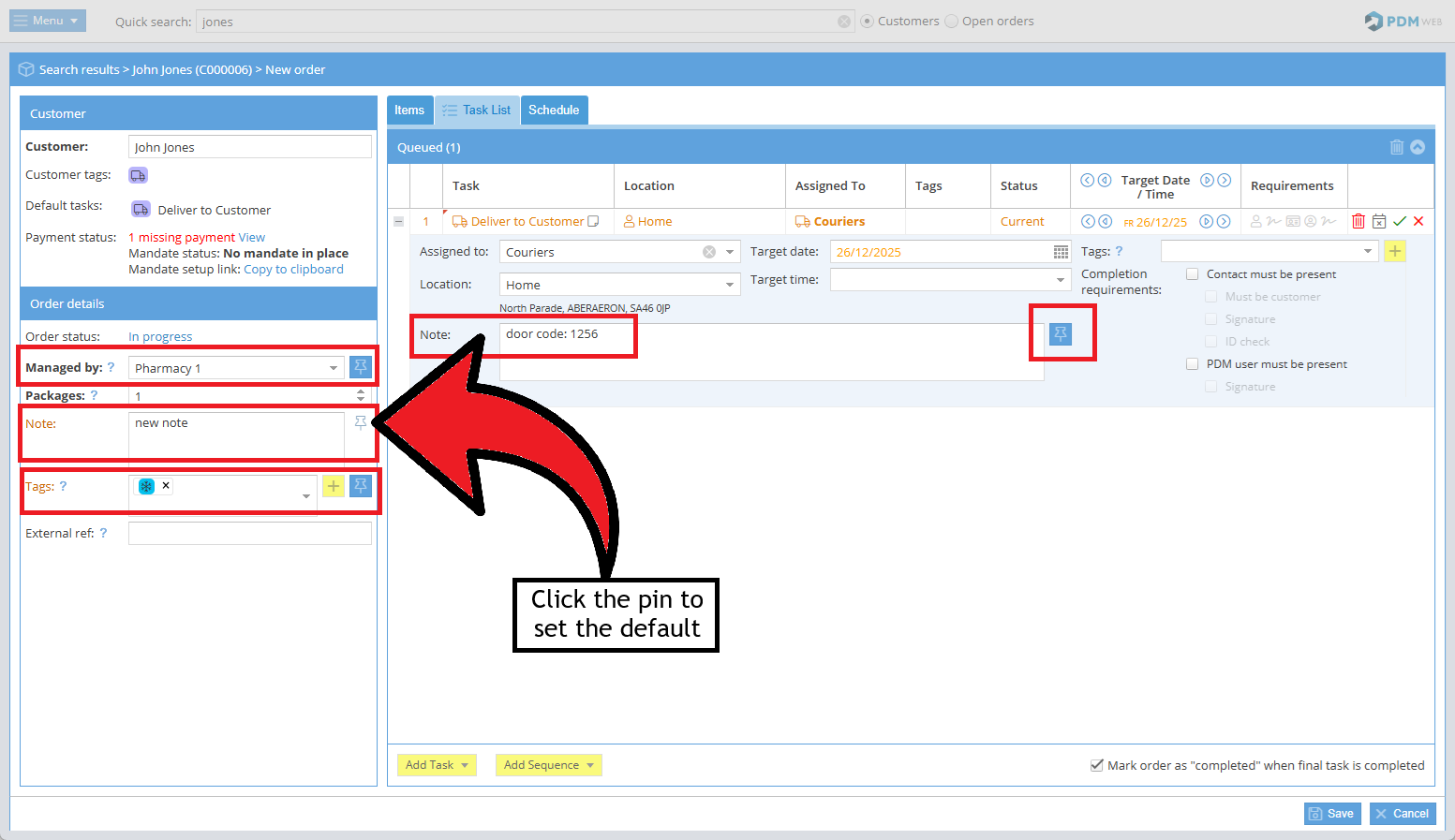
The system will remember the change as a default next time an order is created for the customer.
If you don't need to save the order, click Cancel. The system will retain the note information even though the order has not been continued.
To proceed with saving the order, click Save.