 Watch the Video
Order Settings
In PDM Web, you can set certain defaults for how orders are created and managed.
To view or edit these defaults, go to the Menu > Administration and click Orders.
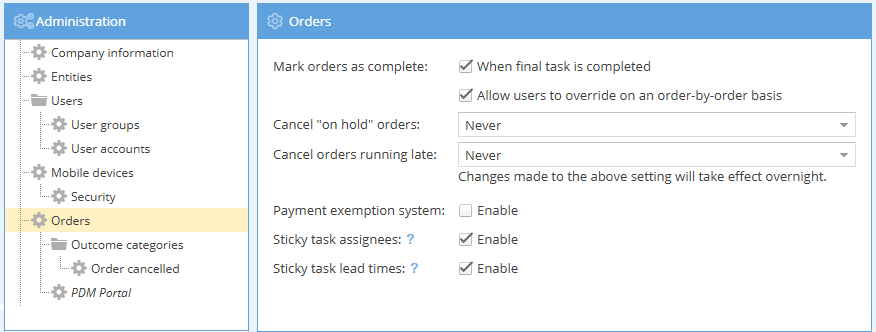
- Mark orders as complete: Set orders to be automatically marked as complete when the final task in the order is completed. You can also choose whether or not to allow users to override this option on an order-by-order basis.
- Cancel "on hold" orders: Choose a time period for orders to be moved from "on hold" status to cancelled automatically. Set the system to automatically mark orders as cancelled after 1 day, 2 days, 3 days, 1 week, 2 weeks, 1 month, 2 months, 3 months, 6 months or after 1 year.
- Cancel orders running late: Choose a time period for orders to be moved from "running late" status to cancelled automatically. Set the system to automatically mark orders as cancelled after 1 day, 2 days, 3 days, 1 week, 2 weeks, 1 month, 2 months, 3 months, 6 months or after 1 year.
- Payment exemption system: Enable this to turn on the payment exemption option.
- Sticky task assignees: When enabled, this option will remember any changes to task assignees for the duration of the session, overriding any default setting for the task.
For example, if you'd like to assign the day's deliveries to a specific driver on duty that day, then assigning the first delivery task to them will mean future delivery tasks in that same session will also default to the same driver. This can also be used on PDM App: just change the first new order details (reassign driver, for example) then you can continue with adding quick orders and the app will remember these settings until you change them again or log out. - Sticky task lead times: When this is enabled, changes to target dates for tasks and task sequences are remembered for the duration of the session. They will be applied to any other orders created with those specific tasks. This can also be used on PDM App: just change the first new order date (change date to tomorrow, for example) then you can continue with adding quick orders in the app and it will remember these settings until you change them again or log out.
Outcome categories: Order cancelled
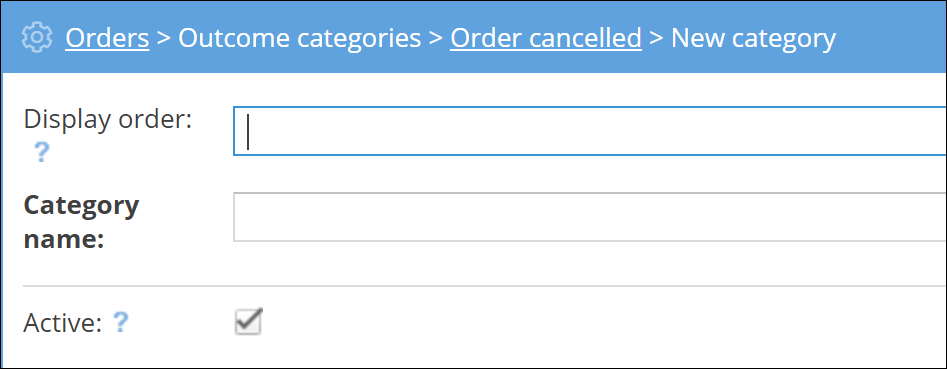
You can also manage the outcome categories for cancelled orders.
These are the options in the drop-down menu that are shown when a user cancels an order on PDM Web or PDM App.

There are five cancelled order categories by default, but you can easily add more categories if necessary. Click on the yellow + New category button and fill in the description.
PDM Portal
You also have the option of configuring the PDM Portal settings.
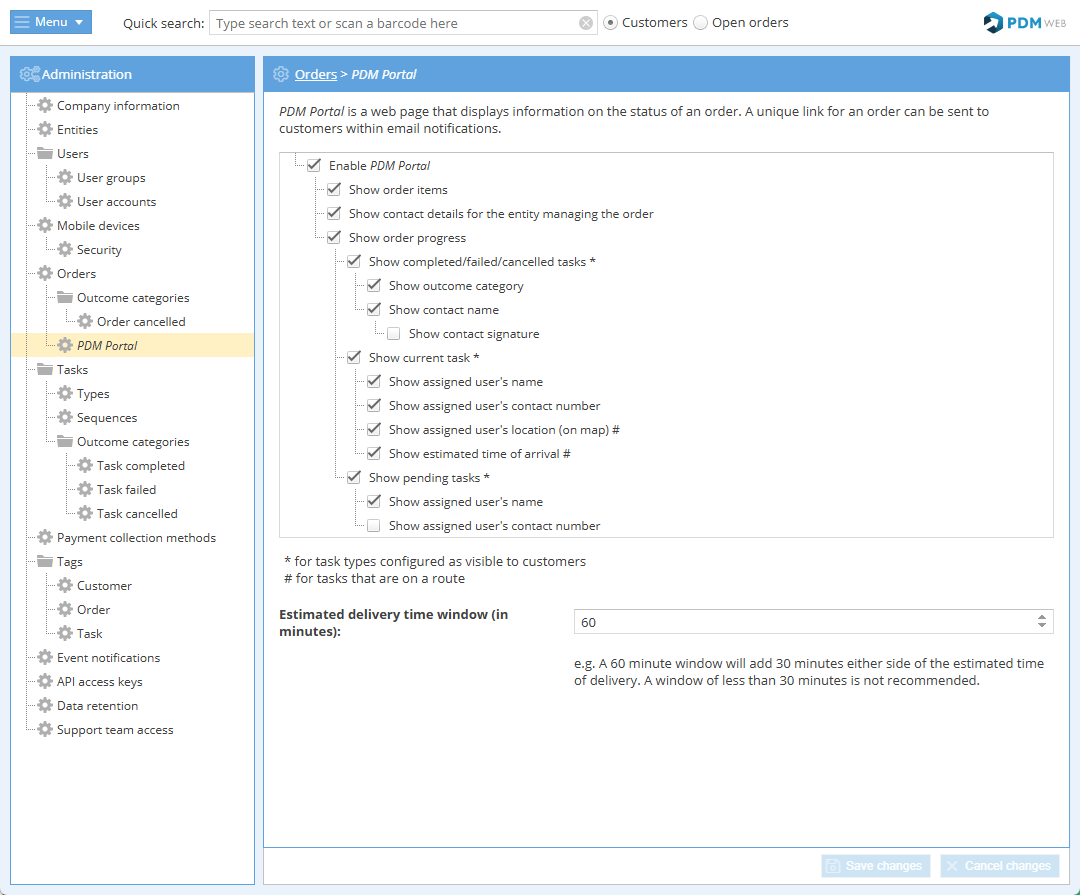
Here, choose what information is shown on the PDM Portal page, as well as how much time to allow in the estimated delivery time window.
Make sure to Save changes when you're finished.