 Watch the Video
Creating Payment Request Schedules
Open the Schedules module from the home screen, then select the Payment request schedules tab.

Here, you can view all existing payment request schedules. To create a new one, click + New payment request schedule in the top-right corner.
A new window will open. Search for and select the customer you want to create the schedule for.
Go ahead and complete the required fields. Required fields are shown in bold.
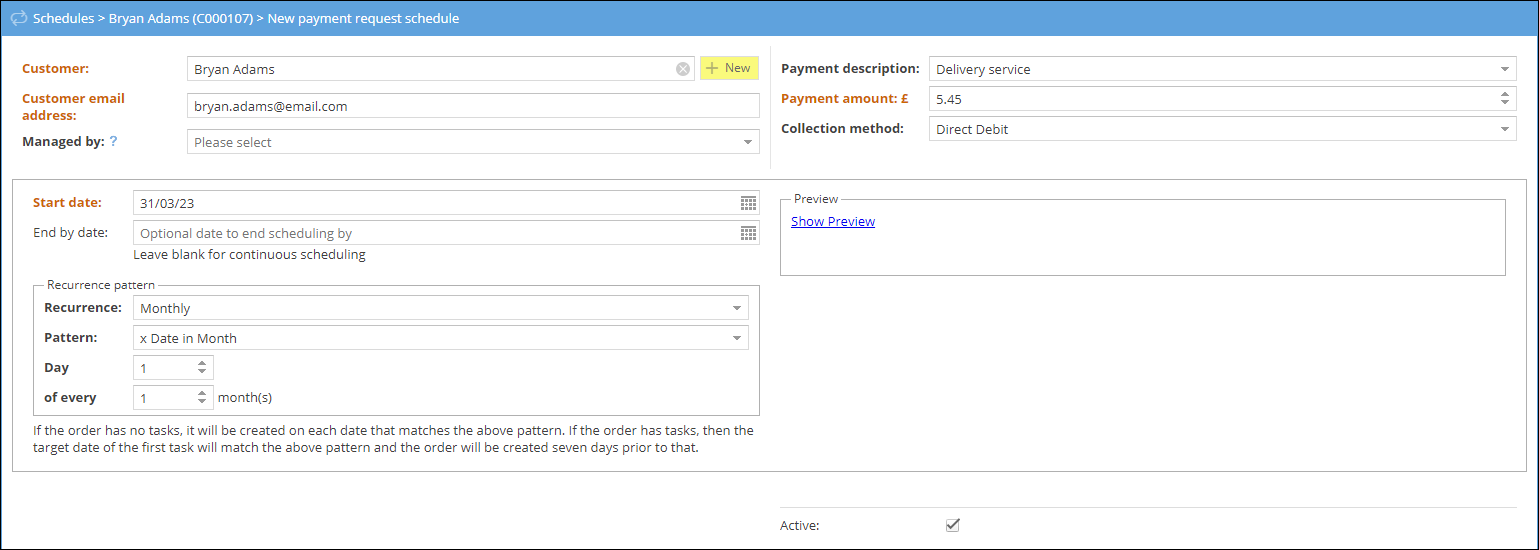
Start date: Enter the date you want the scheduled payments to begin. If you are using Direct Debit through GoCardless, allow up to 14 working days for the Direct Debit mandate to be set up.
End date: Optional. Enter a date if you want the payment schedule to stop automatically. Leave this blank if you want the schedule to continue indefinitely.
Recurrence pattern: Choose how often you want the payment to be taken.
Payment description: Enter a short description of what the payment is for, for example Delivery service. This description can be included in related email and SMS notifications.
Payment amount: Enter the amount to be collected. You can enter up to two decimal places. Depending on the selected collection method, a minimum payment amount may apply.
Collection method: Choose how the payment will be collected.
- Manual: Use this if payments are collected outside PDM, for example through another payment system or by cash. You can then manually track the payment request status in PDM.
- Direct Debit: Available in selected countries. Payments are requested and collected automatically through GoCardless.
If you select Direct Debit, allow up to 14 working days for the Direct Debit mandate to be set up. The available collection methods depend on your country and the options enabled for your account. If a collection method is not available, check Administration > Payment collection methods or contact your administrator.
Read more about collection methods... FAQ: Requesting and Collecting Payments
To check the dates and amounts that will be generated by the schedule, click Show Preview to view the upcoming payments.
Once all required details have been entered, click Save to create the payment request schedule.
What happens next?
Payment request schedules are processed automatically overnight. Payment requests are then created according to the recurrence pattern you have selected.
Once created, payment requests can be viewed and managed in the Payment requests module.
Taking a one-off payment
To record a one-off payment that is collected outside PDM, select Manual as the collection method.
For example, if a patient is collecting an order and paying at the same time:
- Create the payment request schedule and select Manual as the collection method.
- Set the Start date to today and choose a nearby End date, for example tomorrow.
- Select the Daily recurrence pattern.
- Click Show Preview and confirm that only one payment request will be created.
Once the payment has been received, update the payment request status to Received.
Sending payment notifications
Payment-related notifications are configured through Administration > Event notifications.
You can create email or SMS notifications that are triggered by relevant payment events, and customise the message using placeholders for specific event details.
For more information, see the Event Notifications tutorial.