
 Watch the Video
Communications
To manage communications created by PDM, go to the Communications module under the main menu. Here you can view communication details and view or edit associated customers and orders. Depending on the communication method and status, you may also be able to resend or cancel a communication.
For SMS notifications sent via a driver’s mobile device, PDM records when the message has been passed to the device for sending. The status column will display an update such as ‘User prompted to send’.
Note: Once the message has been passed to the device’s default messaging app, PDM cannot track whether the driver sends the message or whether it is successfully delivered by the mobile network.
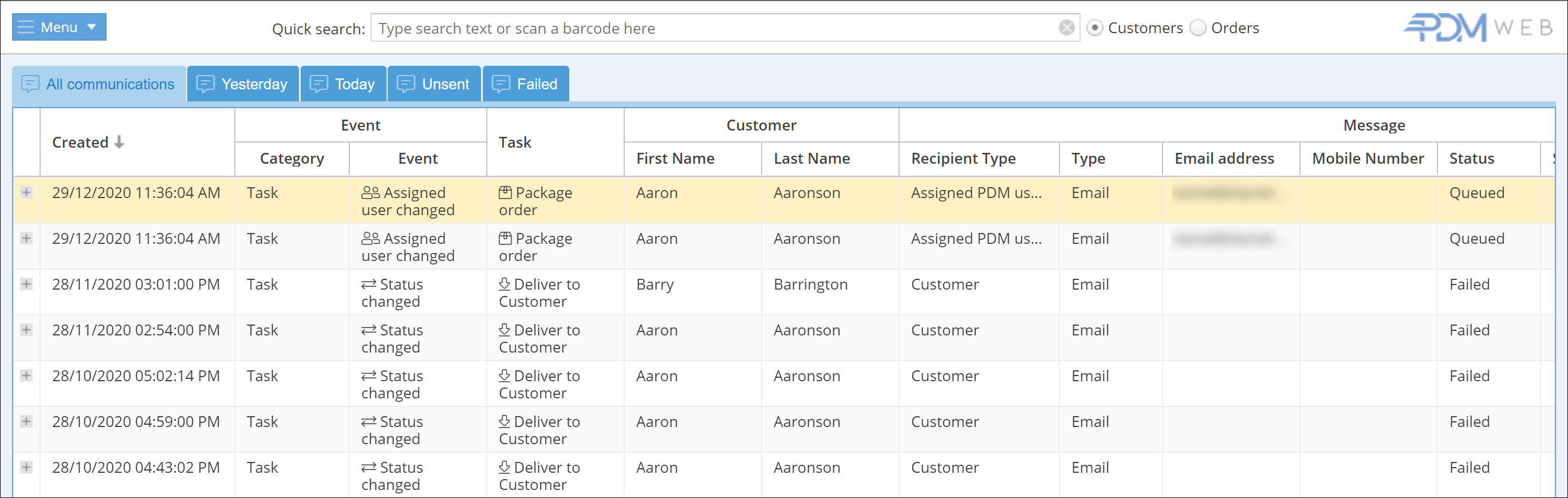
Tabs along the top allow you to view All communications, those sent Yesterday or Today, and Unsent or Failed communications.
Please note: For SMS messages sent via a driver’s mobile device, subsequent send or delivery failures are not reported back to PDM. These messages will therefore not move to Unsent or Failed based on what happens after they have been passed to the device.
Clicking on the + next to a communication will show you the message itself:

Right-clicking a communication opens a menu where you can view or edit the relevant customer and order and, where available, resend or cancel the communication:
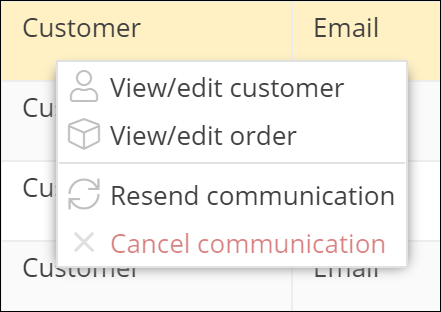
Note: SMS messages that have been passed to a driver’s mobile device cannot be resent or cancelled from PDM Web.
For more information on setting up automatic notifications, see the Event Notifications tutorial.