
Mobile devices
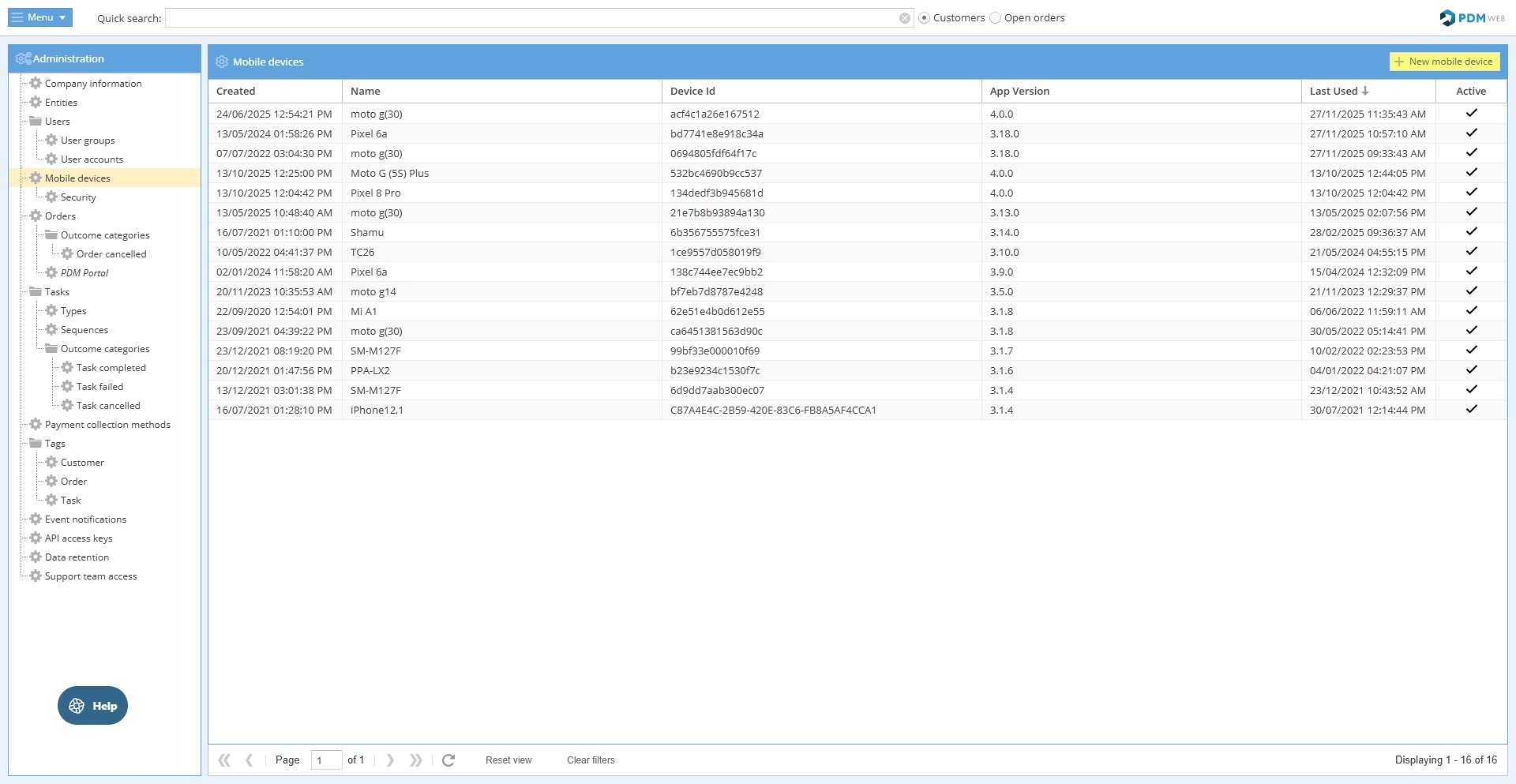
Manage which mobile devices can be used for PDM or prevent new devices from being used here.
You should see a list of each mobile device in use in your company:
Removing a device
A device that currently has access to your PDM account can be denied access temporarily or permanently.
To temporarily deny access to a device
Locate the device in the PDM Web list, right-click on it and choose the “View/edit mobile device” option. Untick the "Active" option and click "Save changes."
Deactivating a mobile device will automatically log off any users logged into the app on the mobile device.
You can use this same method to reactivate a deactivated device.
To permanently remove access from a device
Locate the device in the list, right-click and choose "Delete mobile device."
To ensure that the device does not regain access, check that the "Allow new devices to be added automatically" button is deselected in the Security screen as described above.
PLEASE NOTE: When a device is deactivated or deleted, the user will automatically be logged out from PDM App on that device. This will take place the next time the app communicates with the server, so may not happen immediately.
Read more...
Wondering which devices we recommend for PDM App?
What device specifications are recommended?
How do I create a login for a PDM App user?