Quick Orders
Quick orders enable you to create deliveries at the tap of a button based on customer defaults.
Using the barcode scan button from the home screen will locate a customer record and add a quick order to the system using the defaults available.
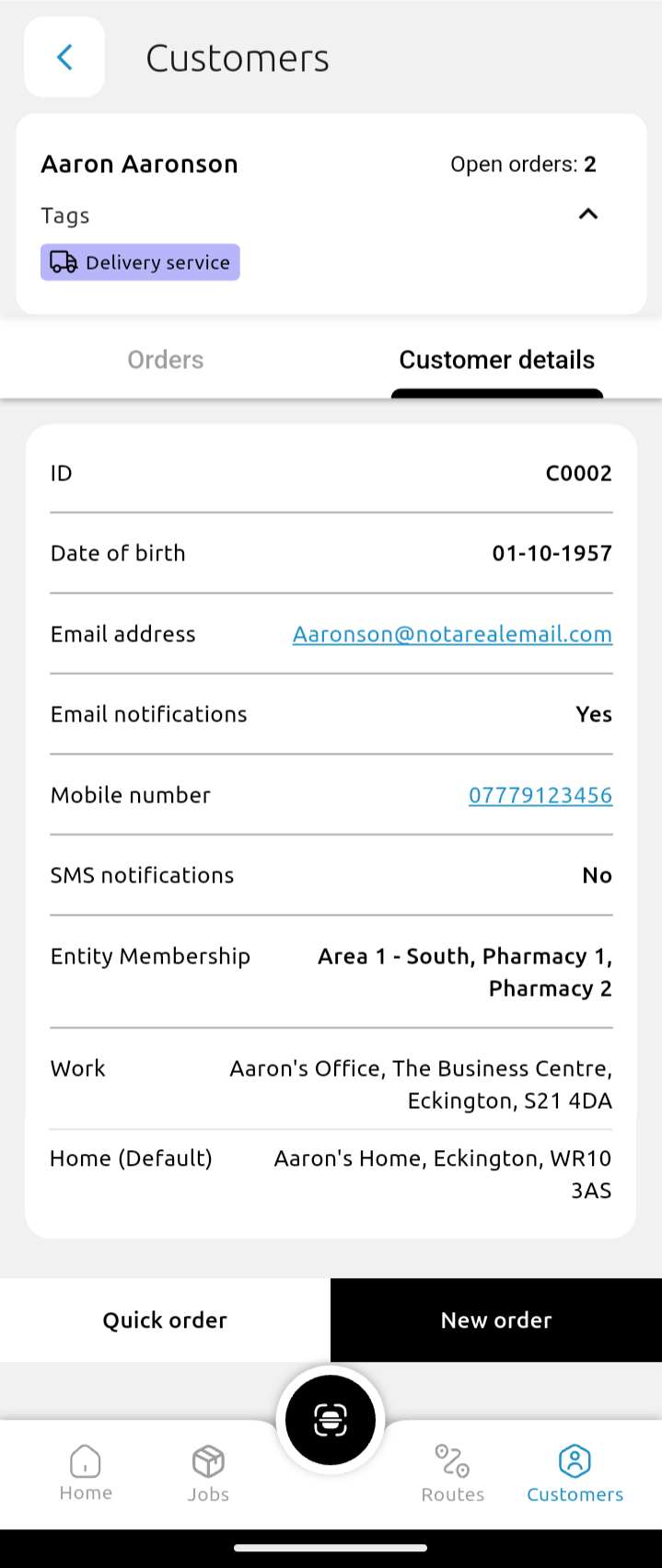
Using the Quick order button within the Customer screen will create a quick order for the customer without asking for any extra information.
For a Quick Order to be successful, default tags need to be saved on the customer account.
These can be set within PDM Web quickly and easily.
A Quick Order will not be created automatically if the customer who is a member of multiple entities has no default entity set on their account. Instead, you will be prompted to enter the missing information before saving the order.
When using the Quick Order feature, the number of open orders will increase with each successful order created.
Using the New Order button (found within the customer record) is still a quick way to create a new order and gives you a few more options and control over the order.
For example, you can add CD or Fridge tags, delivery notes, change the delivery address, assign it to a specific driver and change the target date here.
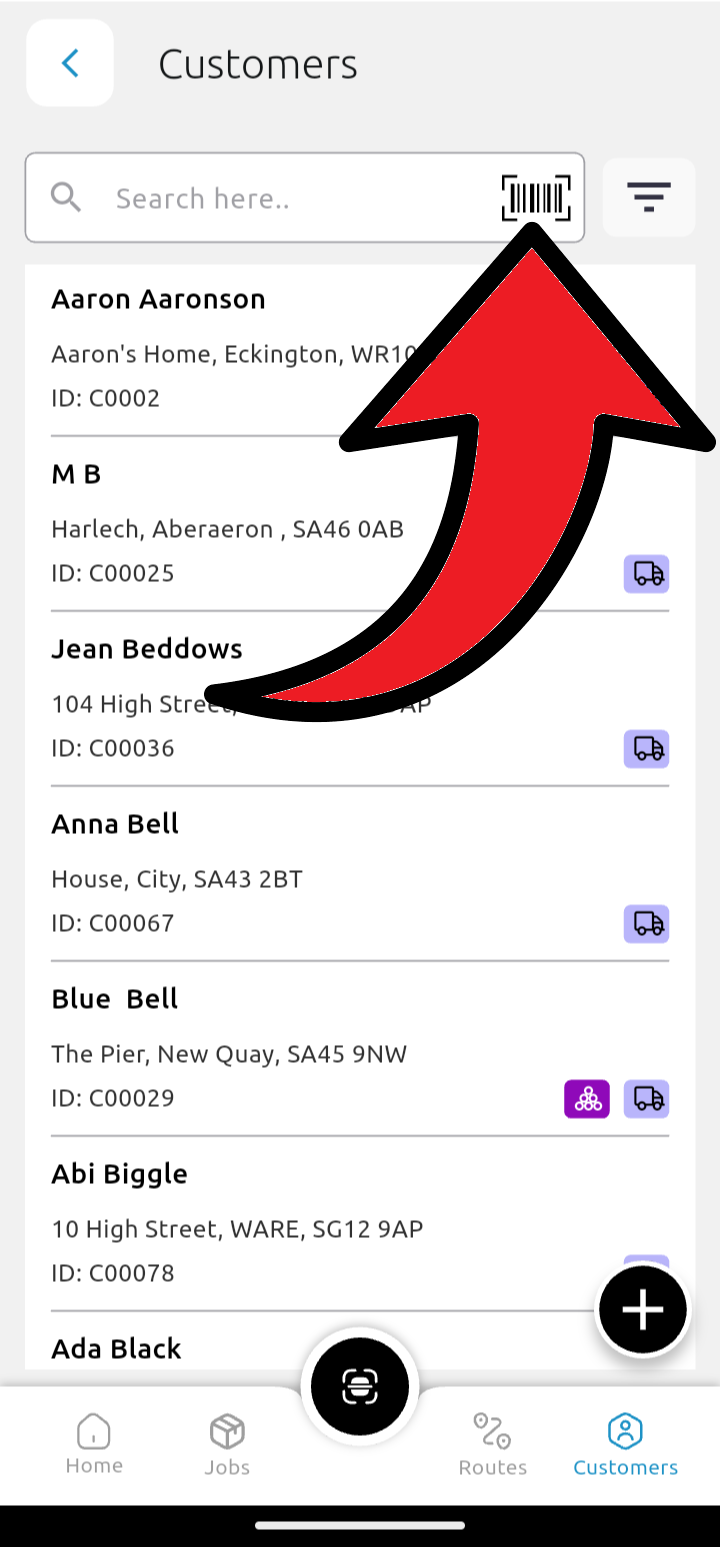
To use this option, instead of using the main barcode scan button, use the barcode button in the Search bar.
Tip: To take advantage of all the different options for managing your orders and tasks, we still recommend using PDM Web.
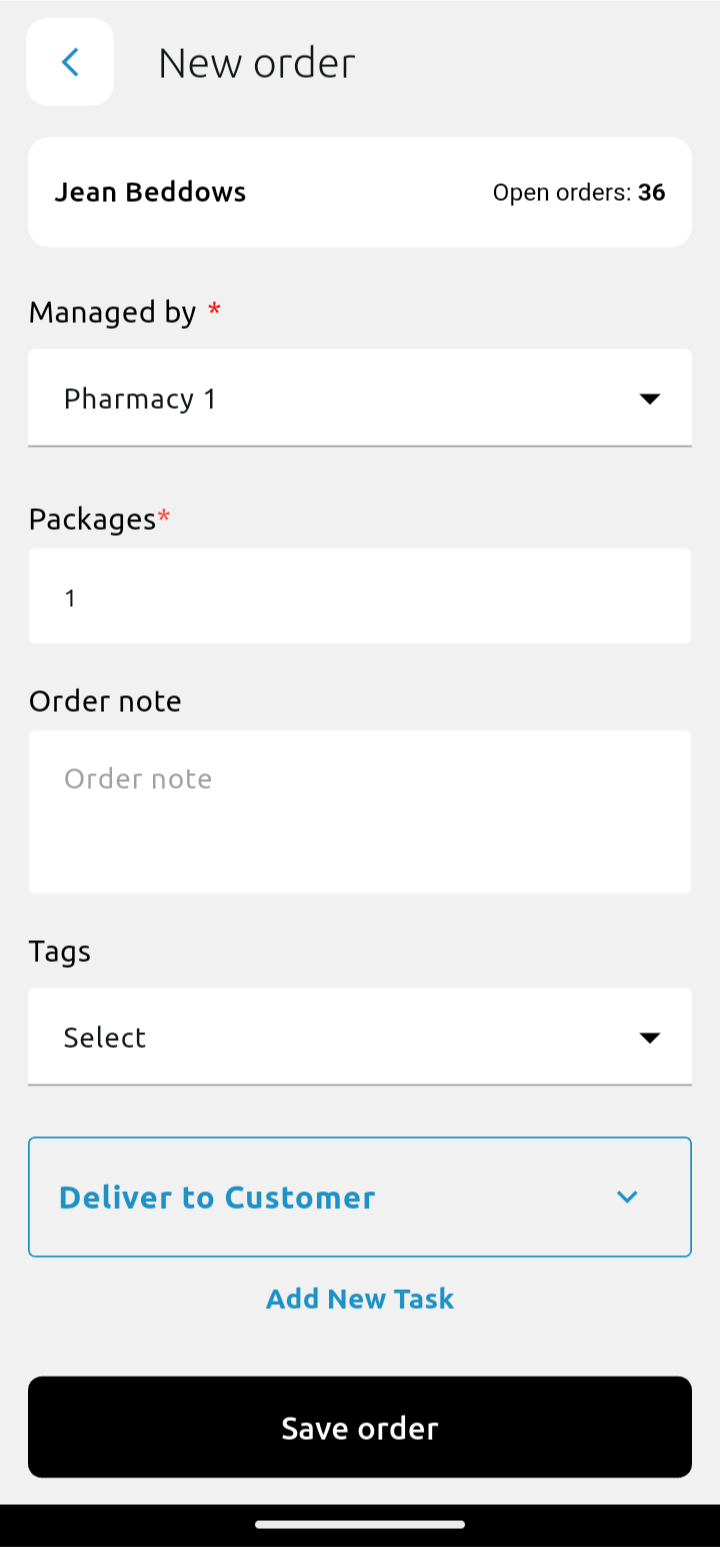
After selecting New Order from the customer record, choose which entity will be managing the order, how many packages are in the order, include any relevant notes and/or tags, and add or remove tasks here.
Where a customer has default order information saved, this will be automatically filled in.
Click Save order when you're done.