
PDM Web
Here are some of the most asked questions from existing users about the PDM Web application.
If you can't find the answer to your question here, please contact us and we will be glad to help you.
PDM Web is compatible with the latest desktop versions of the following web browsers:
- Google Chrome
- Microsoft Internet Explorer
- Microsoft Edge
- Mozilla Firefox
- Opera
- Safari
If you have difficulties using PDM Web, please make sure that your web browser is up to date with the latest version available.
Although we have not tested the PDM Web on mobile or tablet devices, you will probably find that it works on such devices. However, the site is designed for use on larger screens, so we recommend that you generally access it via a desktop computer or laptop.
There are several factors that affect the accuracy of courier tracking.
Please note the following considerations:
Device Specification
For the highest accuracy and frequent tracking updates, you need a device that has built-in GPS. Please note that many iPad tablet devices do not have a built-in GPS sensor.
Make sure that if your device has GPS that it is switched on. See the following links for information on how to do this:
Device Position
In order for the device to be able to get a consistent and accurate GPS lock, we recommend that the device be placed in a holder attached to the windscreen of the delivery vehicle whilst the courier is travelling between deliveries.
Recommended Devices
After thorough testing, we can recommend the following Android devices:
- Motorola Moto g30
- Samsung Galaxy M12
- Huawei P Smart 2021
See Also: Tracking Couriers Using Android Devices Tracking Couriers Using iOS Devices
If a task was cancelled or failed, the order will be put on hold.
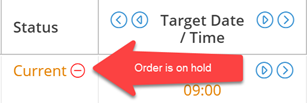
In the associated order, cancelled or failed orders will be moved to the history, and a warning will be displayed.
While you can ignore the warning and carry on completing subsequent tasks, it's highly recommended you address whatever issue caused the task to be failed or be cancelled.
To remove the On Hold status for an order, either reschedule the cancelled/failed task or insert a new task.
When the final task in an order is completed, the order will automatically be completed if the box “Mark order as "completed" when final task is completed” is checked.
See Also: Updating Task Status Orders
Deal with orders "Running Late" in a similar way to orders that are "On Hold"
To remove the "Running Late" status for an order, simply reschedule the task, mark the current task as completed, failed or cancelled or just mark the entire order as Cancelled.
Reschedule the task
To reschedule the task, double-click on the order to open it. In the Task tab, change the date. Click 'Save changes' to save your changes. The order will be removed from the "Running Late" list.
Update the task with an outcome
To mark the task as completed, failed or cancelled, simply right-click on the task in the list view, select Next task and choose the desired outcome. Follow the prompts on-screen to complete the action.
Cancel the order
To cancel the entire order, right-click on the task in the list view and select Cancel order. Follow the prompts on-screen.
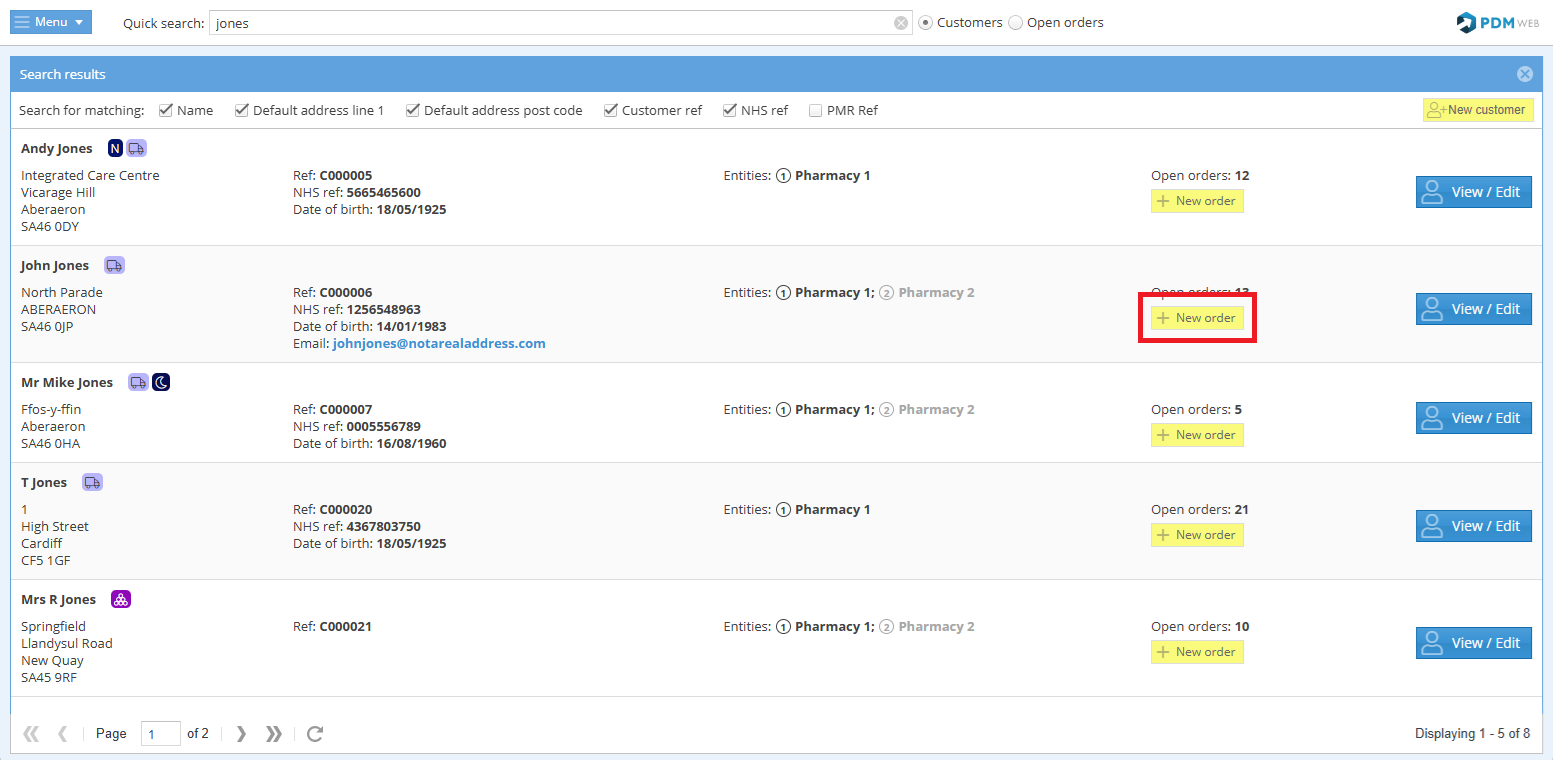
1. Locate the customer record using the search.
2. Click +New order.
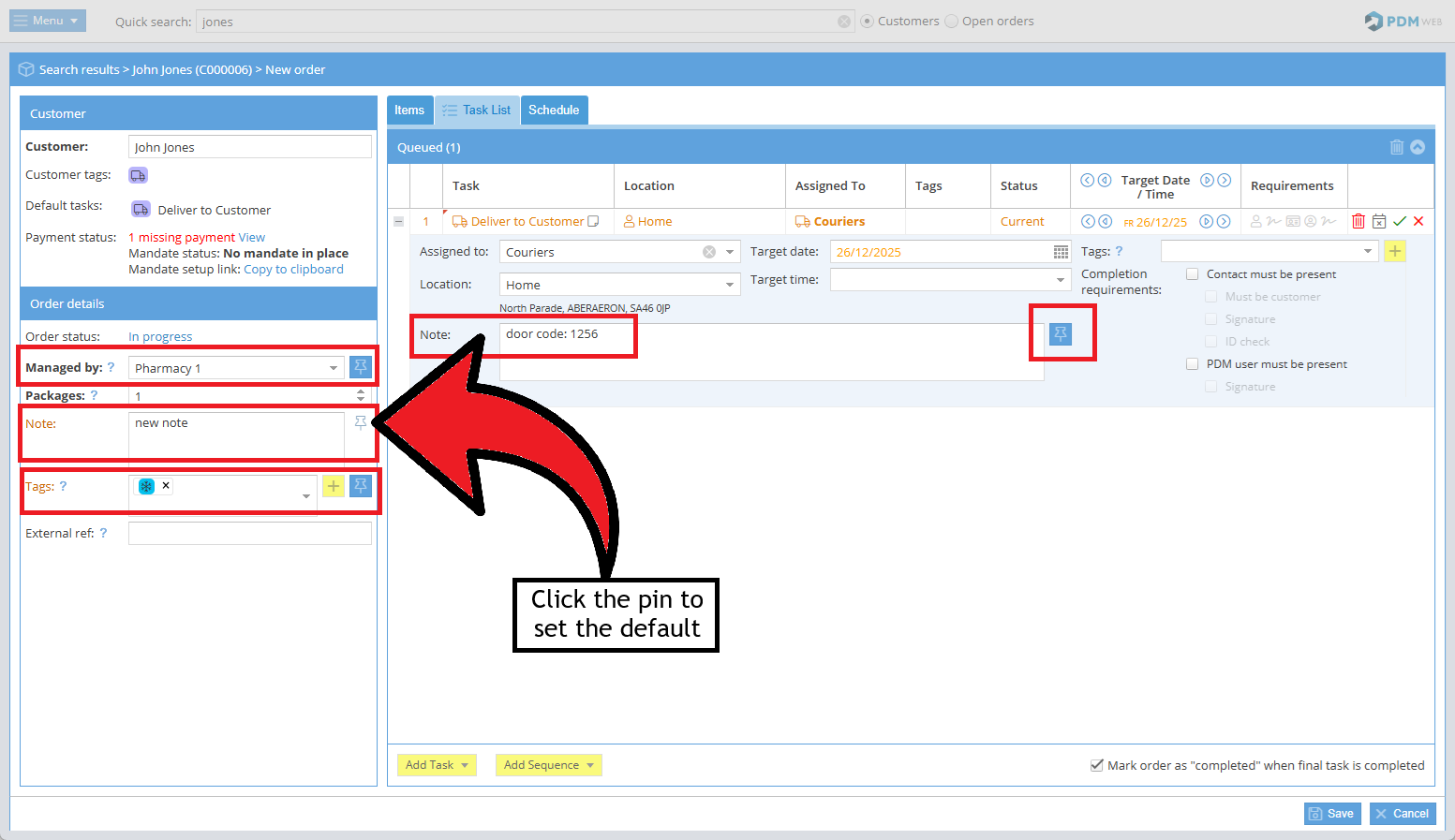
3. Here, you can make changes to saved order notes, task notes, tags, etc. without needing to save the order.
To make a change to a default that is saved (indicated by the blue pin 📌), simply update the information and then click the pin to set it as a default for all subsequent orders created for this customer.
4. If you don't need to save the order, click Cancel. The system will retain the note information even though the order has not been continued.
To proceed with saving the order, click Save.
Go to Menu > Tasks.
Locate the delivery task (you may find it helpful to use the date filter), right-click on it and use the "Reassign task" option.
There is no upper limit on the number of users or logins.
We recommend that you deactivate their account.
When their account is deactivated they will automatically be logged out of PDM Web and PDM App and will not be able to log in again.
To deactivate a user's account, locate them in Administration > Users > User accounts. Double-click to edit, untick the "Active" checkbox, then Save changes.
If you wish to manage which mobile devices can be used for PDM, or prevent new devices from being used, this can be done via the "Mobile devices" settings in Administration.
See Also: Creating Your First Users
This feature is not available yet.
We recommend that you deactivate the customer record in PDM Web.
Deactivated customers will not appear in the mobile app and will be listed at the bottom of search results in PDM Web.
To deactivate a customer record, search for the customer in the Quick Search bar, right click on the record and select 'Edit customer.' Inside the customer record untick the "Active" checkbox.
The customers order history and related information will still be retained for future reference.
See Also: Modifying Customers
You'll find a full Tutorial guide when you log into PDM Web. Just go to Menu > Help & Support.
Alternatively, this free resource can be accessed here.
Yes!
Each of the summary reports has a subscribe option so you can receive a copy of the report.
Choose from daily, weekly, or monthly.